Getting started
Four steps: create your account, connect your Kick channel, drop your first overlay into OBS, and run something live.
person1. Create your account
Sign up at edix.online/signup with an email and password, or click Continue with Kick — that brings you to the same signup form with your Kick details filled in. Either way you choose a password and accept the terms; every account runs its own isolated space for one Kick channel.
If you signed up with an email address we send you a verification link. Your account works right away without it — only the onboarding checklist keeps that step open until you confirm.
link2. Connect your Kick channel
Connecting with Kick is the easy path — it reads your channel name straight from Kick and fills the slug in for you. The first time you open the dashboard without a channel, a prompt asks for it.
To set or change it by hand, open Settings → Connection and enter your channel slug — it must exactly match the name in your kick.com URL. If your channel is kick.com/yourname, the slug is yourname.
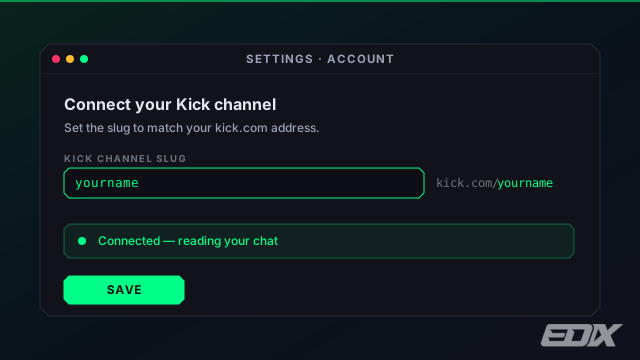
If you're told the channel is already taken, another EdiX account has claimed that slug — connect with Kick so we can verify you own it, or contact support.
live_tv3. Add your first overlay
Go to Settings → Overlays and copy the All-in-One overlay link. In OBS, add a Browser Source, paste the link, and set the size to 1920×1080. That single source shows every overlay you turn on.
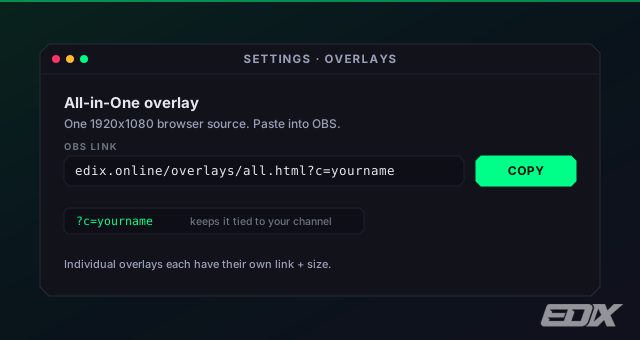
That link is private. Anyone who has it can watch your overlay, so don't show it on stream or paste it in chat — that's why the dashboard blurs it.
Prefer separate sources? Each game and widget also has its own URL and recommended size — see Add overlays to OBS.
bolt4. Run something live
You — and anyone carrying a Kick mod badge in your chat — control overlays by typing !e… commands. Try a poll:
!epoll Best game this year? | Elden Ring | Baldur's Gate 3 | Helldivers 2
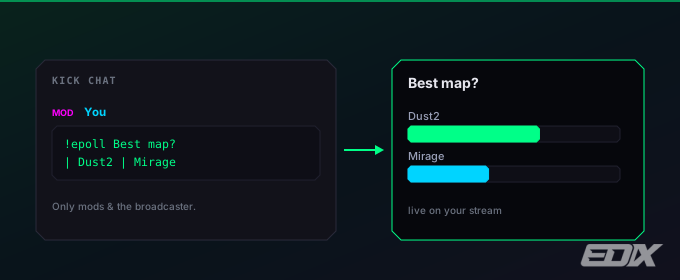
Browse the whole list in Mod commands.