Add overlays to OBS
EdiX overlays are web pages you add to OBS as Browser Sources. Run one combined overlay or pick individual ones.
live_tvAdd a Browser Source
- In OBS, under Sources, click + → Browser.
- In your dashboard, open Settings → Overlays. Links are blurred on purpose — hover to reveal one, then click Copy.
- Paste it into the Browser Source URL field and set Width / Height to the recommended size.
- Position it on your scene. The overlay updates live as games run.
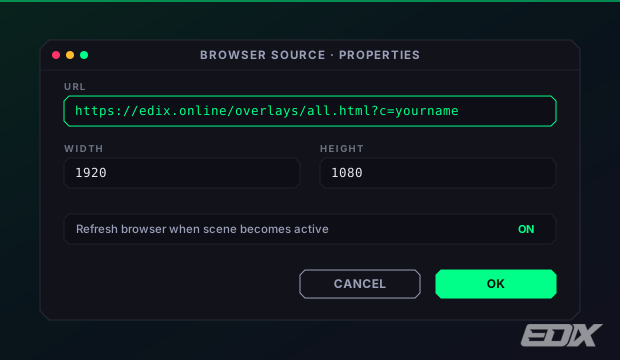
Your overlay link is private. It looks like https://edix.online/o/<token> and deliberately contains no channel name — so always copy it from Settings → Overlays rather than typing one by hand. Treat it like a password: don't show it on stream and don't paste it into any chat.
sports_esportsAll-in-One overlay
The All-in-One overlay is a single 1920×1080 Browser Source that combines every overlay you enable. Turn overlays on, drag to position them, and use the scale slider on a selected box to resize. One source covers your whole scene.
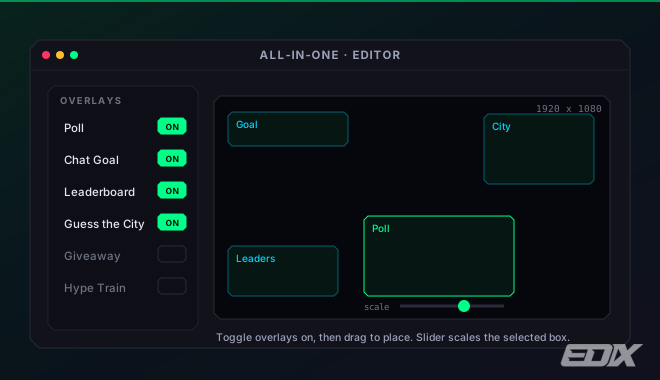
The All-in-One overlay is free for everyone. It carries a small “Powered by EdiX” watermark; on a Pro or Team plan you can switch that off in Settings → Overlays.
tvIndividual overlays
Each game and widget has its own URL and a recommended pixel size (the poll is 600×310, the leaderboard 340×320, and so on). Add only the ones you use as separate Browser Sources.
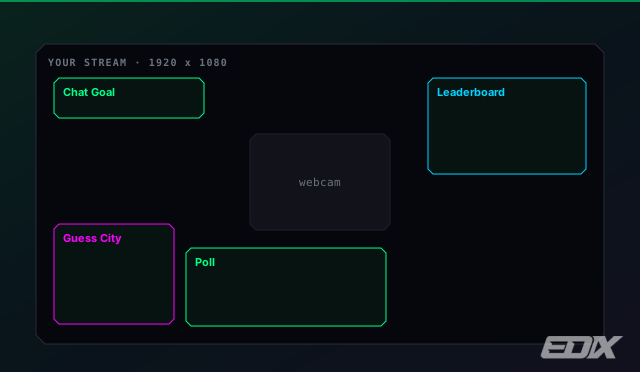
The full list with sizes is in Games & overlays.
lockSecure links
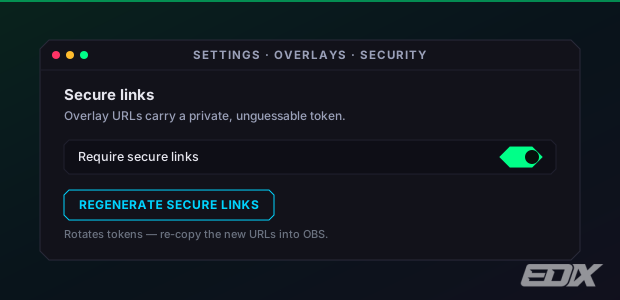
Every overlay has its own link — https://edix.online/o/<token> — built from a private, unguessable token that hides both your channel name and which widget it is. Anyone holding the link can watch that overlay's data, so keep it to yourself. In Settings → Overlays you can:
- Require secure links — switches off the older channel-name links so only your private links work.
- Regenerate secure links — rotates every token at once, in case one leaked.
Regenerate invalidates every link you have already pasted into OBS — re-copy them all afterwards or those sources go blank. Require secure links is gentler: your existing /o/<token> links keep working, and only the older channel-name links stop.
Two options you can append to most overlay links: &preview fills it with demo content so you can position the source before a game runs, and &muted silences its sounds. Neither is universal — a few widgets have no preview mode, and muting only matters on the ones that play audio, so check the widget's own page for the options it actually accepts.
settingsIf an overlay looks stuck
Click Reload overlays in the dashboard footer — or open Settings → Help and use the same button under Maintenance — to refresh every browser source at once. You can also right-click the source in OBS and choose Refresh. More fixes in Troubleshooting.